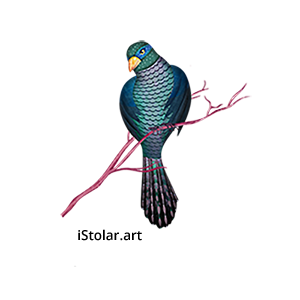
Voici enfin le premier motif de la collection Jungle (“Tight overlaping”/ le plus dense et complexe de tous) qui comportera 8 à 10 motifs en tout.
J’ai commencé à préparer cette collection il y a quelques mois de cela. J’ai fait des recherches de style assez intensives. J’ai pris le temps de dessiner des plantes, animaux et arbres cohérent dans leurs ligneses. J’ai aussi passé du temps à confectionner des mood boards aboutis et des palettes de couleurs fixes. Afin de garder le même esprit / vibration tout au long du projet. Autant d’étapes qui garantissent la cohérence de l’ensemble. Je voulais une grille de référence et pour cette fois, ne pas laisser mes seules intuitions me guider, d’autant que le travail s’étale dans le temps. Il fallait prendre des décisions en amont et s’y tenir. Bref, Priorité a la cohérence et à l’esprit de la collection !
J’aurais dû dessiner les motifs juste après ces étapes préparatoires, mais cet été, lorsque j’ai une digression (surprenant ? – Pas vraiment) en jouant à associer les éléments, j’ai eu envie d’en faire une série de cartes postales. Je suis contente, car la série a bénéficié du travail de préparation de la collection
Tout ça pour dire que je commence cette collection avec un sérieux retard. Les cartes en valaient le coup. Alors ça va ? Alors ça va !
Celui ci est le motif principal (héro) de la collection. Il fallait que ce soit plein, se chevauchant. et vertical , élancée vers le haut… parce que la jungle, c’est une cathédrale verte!
Dans le passé, la création de motifs exigeait de travailler avec des images carrées. Avec “Aperçu du motif”, le carré n’est plus un impératif. On peut désormais visualiser en temps réel la façon dont le motif se compose avec ses répétitions. Et ça, c’est TOP!


I made my Christmas patterns (for wapping paper) with this few procreate stamp brush i made just before
Prepare Your Image: Start with a high-contrast image or design that you want to use as a stamp. You can use a drawing or import a photo and isolate the design by removing the background – Import the Image: Open the Actions menu (wrench icon). Go to the Add section and tap on Insert a Photo to bring in the image – Convert Image to a Brush: Once you’ve isolated the design, go to the Brush Studio by selecting the brush library and tapping the “+” icon to create a new brush. Under the Shape section, tap on Edit and import your design by choosing Import and selecting Photo or Import from File – Adjust the Brush Settings: You can adjust settings under Stroke Path, Taper, Shape, and Grain to fine-tune the look of your stamp brush. In the Shape section, you can also adjust the Scatter and Rotation to add variety to the stamp’s repetition – Save and Use: Once you’re happy with the settings, tap Done to save your brush, and it will appear in your brush library for use.


I created stamps (as a procreate brush) and used them to build a minimalist kind of scandinavian vibe (as i imagine it) patterns. using stamps & Simple paper cut shapes … with a simple repeat it create the magic as well as sophisticated ones.
It was quite relaxing to work with that material over the Christmas vacation, to focuses on simplicity, functionality with a connection to nature, a distinctive emphasis on clean lines, minimalism, and lightness… stylise rather than overly detail elements.
Usually I indulge myself onto the interacted Morris realm. it was different 🙂